SpringWell Futuresoft Smart Controls Guide: Programming Your Conditioner
The SpringWell Futuresoft isn’t just a salt-free water conditioner—it’s a smart system that gives you real-time control over water hardness, flow rates, and regeneration (or rather, conditioning cycles). But if you’ve just installed one and stared at the touchscreen interface, you might feel a bit overwhelmed. Don’t worry—the smart controls are actually intuitive once you know the key parameters.
This guide walks through the essential programming steps, common adjustments, and how to get the most from the digital brain of your Futuresoft. We’ll cover everything from initial setup to fine-tuning for seasonal changes, so you can have consistent water quality without guesswork.
How Do I Set Up the SpringWell Futuresoft Control Panel for the First Time?
Your Futuresoft arrives with a protective film over the touchscreen. Peel it off, then press the power button on the top-right corner. The unit will boot up and prompt you to select your language—English is the default for North American units. Next, you’ll need to enter your water hardness level in grains per gallon (gpg). If you don’t have a test kit, you can find your municipal water report online; for well water, use a simple hardness test strip (included in the box).
The controller will then ask for the number of people in your household (or more precisely, the average daily water usage). Default is 4 people—adjust this up or down. After that, it will ask for a “flow threshold” (usually 2.5 GPM) which triggers the conditioning process. Don’t stress—the system auto-calibrates after 24 hours, but you can manually override these values any time.
Once set, press “Save & Reboot” and wait about 60 seconds. The Main Menu will show current status, including “Conditioning Active” or “Standby.” That’s it—the core setup takes less than five minutes.
What Are the Key Menu Options on the Futuresoft’s Smart Controller?
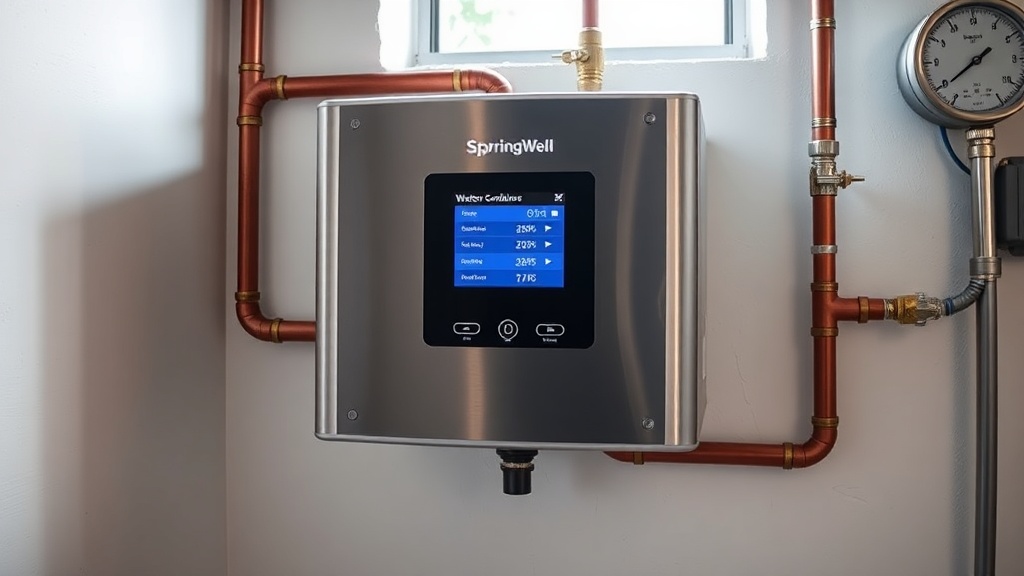
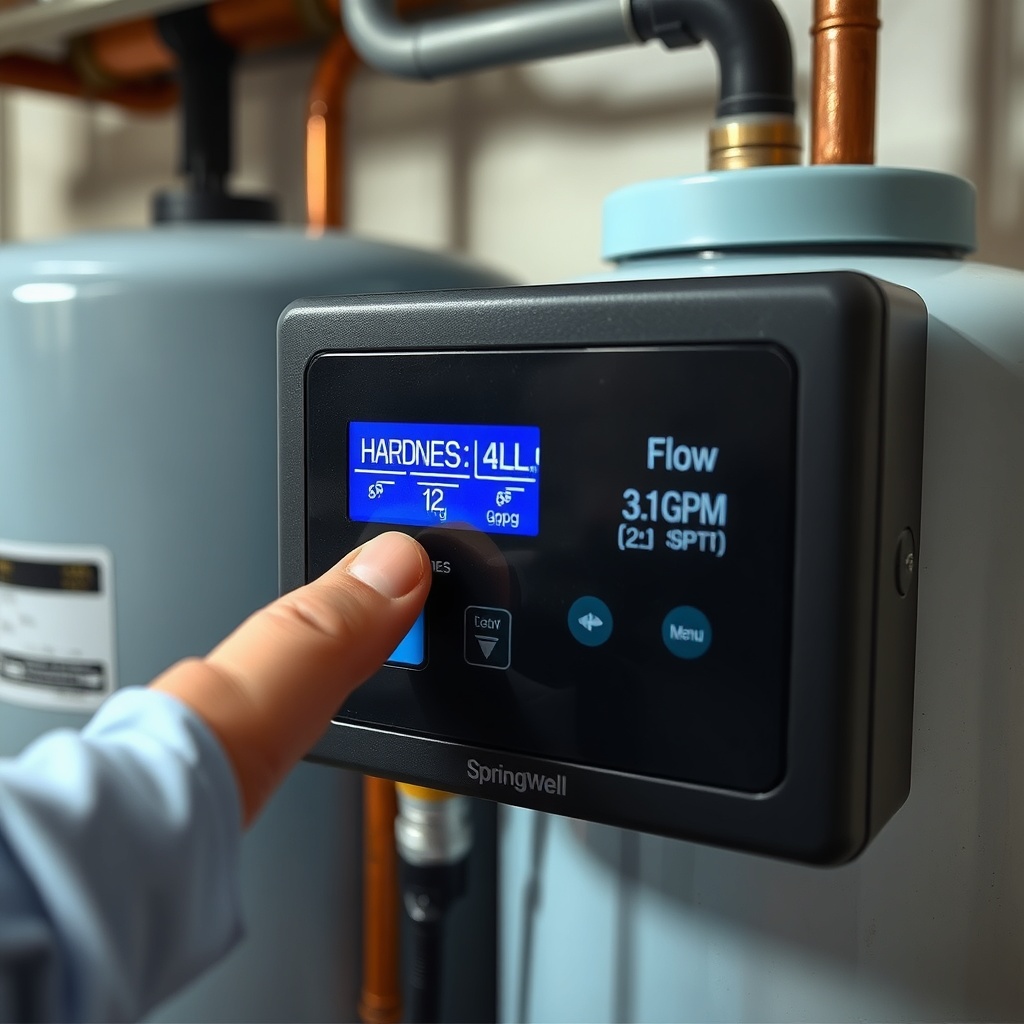
The control panel has four main menus accessed via the touchscreen: Status, Settings, History, and Diagnostics.
- Status: Displays live flow rate (GPM), totalized water usage today and this week, and whether the media tank is currently conditioning. You’ll also see a “Salt-Free Mode” indicator (always on for this system, since it doesn’t use salt).
- Settings: Where you adjust hardness, number of people, flow threshold, and set time-of-day or manual override for cleaning cycles. You can also set “Vacation Mode” (pauses conditioning after 7 days of no flow).
- History: Graphs daily water usage over the past 30 days, average hardness treated, and total gallons conditioned since installation. Useful for troubleshooting.
- Diagnostics: Shows sensor readings (pressure, temperature, flow), error codes (e.g., “E2: Low Flow”), and contact information for support.
To navigate, tap the menu name—no swiping needed. Each submenu has a back arrow at the bottom left. The interface is responsive and has a 2-second timeout to prevent accidental changes.
How Do I Set the Hardness Level Correctly for My Water?
Accuracy matters here. If you input a hardness that’s too high, the system may cycle more often than needed, reducing media lifespan. Too low, and you might not get full conditioning. The Futuresoft uses a digital “crystal nucleation” model, not a resin bed, so the setting affects the frequency of backwash cycles (yes, it still backwashes even without salt).
To find your true hardness: perform a test using a LaMotte Hardness Test Kit (available on Amazon for $18–25). Collect a sample from a cold tap before the conditioner. Test three times and average the results. Some municipal water varies by season—test every 6 months.
| Severity Level | Hardness Range (gpg) | Recommended Futuresoft Setting |
|---|---|---|
| Usually not urgent | 3–7 gpg | Set to 5 (default fine-tuning) |
| Needs attention soon | 8–12 gpg | Set to 10, check flow sensor monthly |
Once set, the system will automatically adjust its conditioning frequency. For extremely hard water (12+ gpg), you may also need to increase the “Flow Threshold” to 3.0 GPM to ensure adequate contact time.
How Do I Adjust Flow Rate Settings on the Futuresoft for Peak Performance?
The Futuresoft has a built-in flow sensor that measures instantaneous gallons per minute. The “Flow Threshold” (default 2.5 GPM) tells the system when to start conditioning. If you have high-flow fixtures (like a rain showerhead at 3.5 GPM), you might get “Low Flow” errors. That’s when you’ll want to adjust.
Head to Settings > Flow Threshold. Increase it in 0.5 GPM increments until the error stops, but never exceed your pipe diameter’s maximum (for 1-inch pipes, stay below 8 GPM). Also, set the “Max Flow” cap (under Advanced Settings) to protect your plumbing—this triggers a warning if flow exceeds 10 GPM, though the unit can handle up to 12 GPM.
A common tweak: if you have a well pump cycling frequently, reduce the threshold to 2.0 GPM so the conditioner runs on smaller draws. This extends pump life. For city water, keep it at 2.5 GPM.
We cover flow-related issues in detail in our SpringWell Futuresoft Low Flow Troubleshooting: Causes and Fixes guide, including how to clear sensor blockages.
Can I Program the Futuresoft for Vacation Mode or Seasonal Changes?
Absolutely. The Vacation Mode is exactly what it sounds like: if the system detects no water flow for 48 hours, it automatically enters a low-power state. You can force it by going to Settings > Vacation Mode and setting a return date. While in this mode, the unit stops all conditioning cycles but still monitors for leaks (a nice safety feature). When you return, just run a tap for 2 minutes, and the system wakes up.
For seasonal changes, you might want to adjust the hardness setting. Late spring often has higher mineral content in well water due to snowmelt. I recommend increasing hardness by 2–3 gpg in May and reverting in October. Also, if your water temperature drops below 40°F in winter, the conditioning efficiency can dip—you may need to increase the flow threshold slightly.
The built-in calendar allows you to schedule these changes monthly. The history graph will show you if your adjustments are working—look at the “Gallons Conditioned per Day” trendline.
What Do Owners Say About Programming the Futuresoft?
“I’m not a tech guy, but the setup was actually easy. The hardest part was remembering my hardness number from the test. The touchscreen is bright and the menu makes sense—no manual needed after the first hour.” — Mark T., Texas (installed 4 months ago)
“I had a neighbor insist I needed a salt softener, but after programming the Futuresoft with his water data, he was impressed. The only think I tweaked was lowering the flow threshold because my well pump runs at 1.8 GPM. Works perfectly now.” — Laura K., Colorado (well water, 10 gpg)
How Do I Reset or Update the SpringWell Futuresoft Controller?
Resets are rare but sometimes necessary after a power surge. To factory reset: press and hold the “Menu” button for 10 seconds (or until the screen flashes). Confirm on the prompt, and the unit will wipe all user settings. You’ll need to re-enter hardness, number of people, and flow threshold.
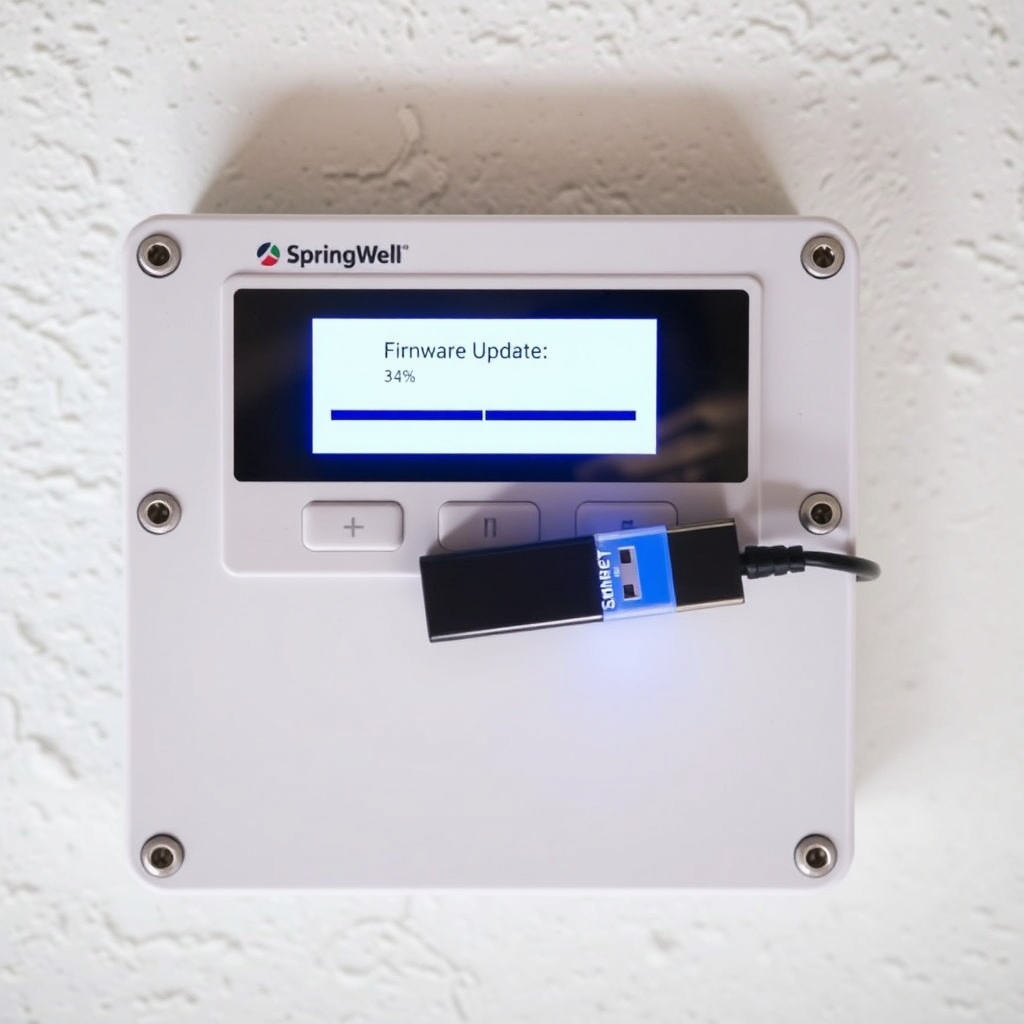
Firmware updates are done via USB. Check the SpringWell website for the latest version (look for “Futuresoft Firmware v3.1” as of mid-2025). Download the file to a FAT32-formatted USB stick, insert it into the port on the bottom of the controller, and select Settings > Firmware > Update. The process takes about 3 minutes—don’t power off during this.
If you’re comparing this to salt-based softeners, our SpringWell Futuresoft vs Salt-Based Softeners: Which Is Better? article explains why firmware flexibility matters for salt-free tech.
Frequently Asked Questions
Does the Futuresoft controller have Wi-Fi or app control?
No, the current model does not have built-in Wi-Fi. It uses a local touchscreen only. SpringWell has hinted at a future upgrade module, but as of now, you must be near the unit to adjust settings.
Can I use the controller to check if the media needs replacing?
Indirectly, yes. The Diagnostics menu shows total gallons treated. Media is rated for 600,000 gallons (under 10 gpg conditions). Use that as a replacement indicator. There’s no chemical sensor for media exhaustion.
How often should I perform a manual backwash through the controls?
Only if you notice very low flow or if the system has been idle for 2+ weeks. Otherwise, it auto-backwashes every 7 days (or after every 15,000 gallons, whichever comes first). Manual backwash: go to Settings > Manual Cycle > Start.
My screen shows “Error E5: High Flow.” What does that mean?
It means flow exceeded 12 GPM for more than 5 seconds. Check for a burst pipe or open hydrant. If no leak found, reduce your “Max Flow” setting or increase pipe diameter. This error does not damage the unit but stops conditioning until flow normalizes.
Can I change the display from English to Spanish?
Yes. Go to Settings > Language and select Español. French and German are also available in newer units (check firmware version).
Is it normal for the control panel to get warm to the touch?
Slightly warm is fine—the processor generates heat. If it feels hot (above 110°F), ensure vents aren’t blocked or that the unit isn’t in direct sunlight. Contact support if it exceeds 120°F.
For a deeper look at what the unit actually removes, read our SpringWell Futuresoft Performance Testing: Does It Really Remove Hardness? article.